
How Many WordPress Plugins Are Too Many? What Really Slows Down Your Website
August 25, 2026
/
How Many WordPress Plugins Are Too Many? What Really Slows Down Your Website
If you’ve been using WordPress for a while, you’ve probably heard someone say:
“You have too many plugins. That’s why your site is slow.”
It sounds reasonable. More plugins must mean more work for WordPress, right?
Well, not exactly.
I’ve seen WordPress websites running 30, 40, or even more plugins that perform perfectly well. I’ve also seen websites with fewer than 15 plugins struggle with slow pages and an even slower WordPress dashboard.
So the better question isn’t “How Many WordPress Plugins Should You Have”
It’s:
“What are those plugins actually doing?”
A single badly optimized plugin can cause more trouble than 20 lightweight ones.
Let’s look at what actually matters.
Do More WordPress Plugins Make Your Website Slower?
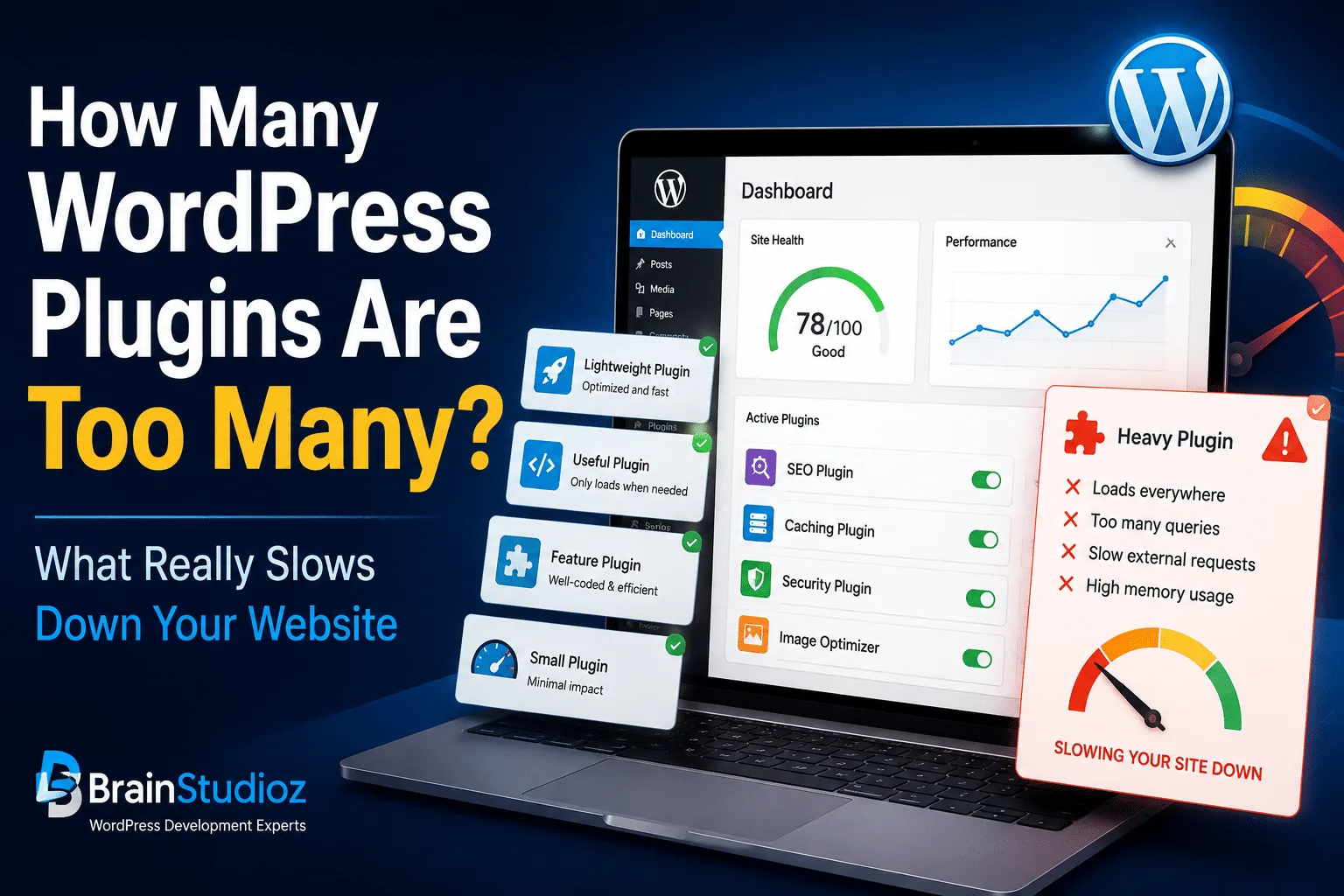
Not automatically. There’s no magic number where WordPress suddenly decides, “That’s plugin number 31 — time to slow everything down.” Every plugin is different. One plugin might add a tiny feature and barely do anything until that feature is needed. Another might load JavaScript and CSS, run database queries, make external API requests, schedule background jobs, and add processing to every page request. Both still count as one plugin. That’s why judging a WordPress website purely by its plugin count doesn’t tell you very much. Imagine two websites: Website A: 35 small, well-built plugins. Website B: 12 plugins, but several are loading unnecessary scripts, making slow database queries, and running background processes constantly. Website A could easily be faster. The quality and behavior of your plugins matter much more than the number sitting on your Plugins screen.So, What Actually Makes a Plugin Slow?
There are quite a few possibilities, but these are some of the problems we see most often.1. Loading JavaScript and CSS on Every Page
This is a common one. Suppose you install a booking plugin and only use the booking form on one page:/book-appointment/
You would expect most of the booking-related assets to be needed there.
But some plugins load their CSS and JavaScript everywhere — your homepage, blog posts, contact page, landing pages, and even pages that have nothing to do with bookings.
One plugin doing this might not be noticeable.
Install several plugins that behave the same way, though, and suddenly every page is carrying a lot of unnecessary baggage.
Well-built plugins should load resources only where they’re actually needed whenever possible.
2. Too Many Database Queries
Almost everything in WordPress involves the database in some way. Posts, users, WooCommerce orders, settings, metadata, products — it all has to come from somewhere. Database queries themselves aren't a problem. WordPress couldn't work without them. The problem is unnecessary or inefficient queries. For example, a plugin might repeatedly request the same information or search through a large amount of data on every page load. You might not notice much of a difference when your website is small. Then your WooCommerce store grows to thousands of orders, your traffic increases, or your database gets larger. That's when a query that was merely inefficient can become a real performance problem.3. Waiting for External Services
Plugins increasingly connect WordPress to other platforms. Think about:- AI services
- Payment gateways
- Email marketing platforms
- CRMs
- Analytics tools
- Cloud storage
- Social networks
- Shipping services
4. Two Plugins Trying to Do the Same Job
Sometimes the problem isn't a bad plugin at all. It's two good plugins stepping on each other's toes. We often see WordPress sites with overlapping functionality:- Multiple caching plugins
- Two SEO plugins
- Several security tools
- Multiple image optimization systems
- Different analytics plugins tracking the same things
5. Plugins Can Slow Down wp-admin Too
When people talk about WordPress performance, they usually think about the frontend. But what about the people actually running the website? A slow WordPress dashboard can be just as frustrating. You click Orders and wait. You open the Media Library and wait. You update a product and... wait again. Plugins can affect the admin area through database queries, dashboard widgets, AJAX requests, API calls, background processes, and other operations. This is especially noticeable on larger WooCommerce and membership websites. If your frontend feels fast but your dashboard has become painfully slow, your plugin stack is still worth investigating.How Many WordPress Plugins Should You Have?
This is probably not the answer people want, but: As many as your website genuinely needs. We wouldn't recommend aiming for a particular number. Instead, periodically look through your installed plugins and ask some simple questions. Do we still use this plugin? It's surprisingly common to find plugins that were installed for a feature nobody uses anymore. Do we have another plugin doing the same thing? If two plugins overlap heavily, you may not need both. Is the plugin still maintained? Check when it was last updated and whether it's compatible with current WordPress and PHP versions. Does it load resources everywhere? Check your browser's developer tools and network requests. Is it creating slow database queries? Tools such as Query Monitor can help developers investigate what's happening behind the scenes. And finally: Would we install this plugin today if it wasn't already there? That's a surprisingly useful question. If the answer is no, it might be time to reconsider why you're keeping it. When people ask how many WordPress plugins are too many, the better approach is to look at plugin quality, resource usage, and whether each plugin is actually necessary.Plugin or Custom Development?
This is another question we hear frequently. Why install another plugin when a developer could just build the feature? Sometimes that's exactly the right approach. Sometimes it isn't. If a mature, well-maintained plugin already solves your problem properly, there may be little value in rebuilding everything from scratch. You get updates, bug fixes, compatibility improvements, and usually a lot of functionality that would take considerable time to develop yourself. But there’s another situation we see fairly often. A business needs one specific workflow, but making it happen requires four or five plugins stitched together. One plugin adds the form. Another handles the automation. Another connects the API. Another changes WooCommerce behavior. Now you're maintaining an entire chain just to accomplish one relatively focused task. That's where a purpose-built WordPress plugin can make a lot of sense. The important thing to remember is that custom code isn't automatically better code. A badly built custom plugin can cause exactly the same performance, security, and maintenance problems as a badly built public plugin. The goal should always be the simplest solution that is reliable and maintainable.Should I Put Custom Code in functions.php?
We've all done it. You find a useful WordPress snippet online, openfunctions.php, paste it in, and everything works.
Then another snippet gets added.
And another.
A year later, the theme's functions.php has quietly become responsible for half the website.
A simple rule we like is:
If the functionality should survive when you change your theme, it probably doesn't belong to the theme.
Things such as custom API integrations, business rules, data synchronization, admin tools, automation, and WooCommerce functionality are generally better handled through a plugin.
Your theme should primarily control how the website looks.
Your plugins should handle functionality that isn't tied to that design.
That separation can save a lot of headaches when the website is redesigned later.
How Do I Find the Plugin That's Slowing Down WordPress?
This is where you want to avoid guessing. Don't start randomly disabling plugins on your live WooCommerce store and hope for the best. Use a more controlled approach.Start With a Backup
Before troubleshooting anything significant, make sure you have a recent backup. That should be standard practice anyway.Use a Staging Website
If your hosting provider offers staging, use it. A staging copy lets you experiment without customers suddenly discovering that checkout disappeared because you deactivated the wrong plugin.Get a Baseline
Before changing anything, measure the website. Look at things like:- Server response time
- Page generation time
- Database queries
- Network requests
- JavaScript execution
- Core Web Vitals
Use Query Monitor
Query Monitor is one of the tools WordPress developers can use to understand what's happening during a request. It can help uncover slow database queries, PHP errors, HTTP API requests, hooks, and other useful debugging information. You don't need to understand every number it displays. You're looking for things that stand out.Test Suspected Plugins
Once you have a staging environment and a baseline, you can start disabling suspected plugins one at a time. Then test again. If page generation suddenly drops from two seconds to half a second after disabling one plugin, you've found something worth investigating. That still doesn't necessarily mean the plugin has to be removed. It could be a configuration problem, an interaction with another plugin, or something that can be optimized.Don't Forget Background Jobs
Some WordPress performance problems aren't visible in a normal page-speed test. A plugin might be:- Synchronizing thousands of records
- Processing images
- Running scheduled tasks
- Sending emails
- Importing products
- Communicating with an external API
What About Security Plugins?
This topic usually creates some debate. Security plugins can perform a lot of work. They may scan files, monitor login attempts, check requests, compare files, block suspicious traffic, and record activity. Naturally, that requires resources. But removing your security setup just to shave a little time off a page load isn't a particularly good optimization strategy. WordPress security should be considered as a whole. That includes good hosting, strong passwords, two-factor authentication, updates, backups, appropriate permissions, firewall protection, and sensible security monitoring. The goal isn't: Security or performance. It's: Good security implemented without unnecessary performance overhead.Plugin Count Isn't the Real Problem. Plugin Bloat Is.
This is the distinction that matters. Having 30 plugins isn't necessarily plugin bloat. Having 15 plugins when you only really need eight might be. WordPress websites tend to accumulate things over time. Someone installs an analytics plugin for a campaign. Another developer adds an optimization plugin. The marketing team tries a popup tool. A page builder extension gets installed for one widget. Three years later, nobody remembers why half of them are there. That's plugin bloat. And performance isn't the only problem it creates. Every unnecessary plugin is another thing you may need to:- Update
- Test
- Troubleshoot
- Secure
- Keep compatible
- Explain to the next developer